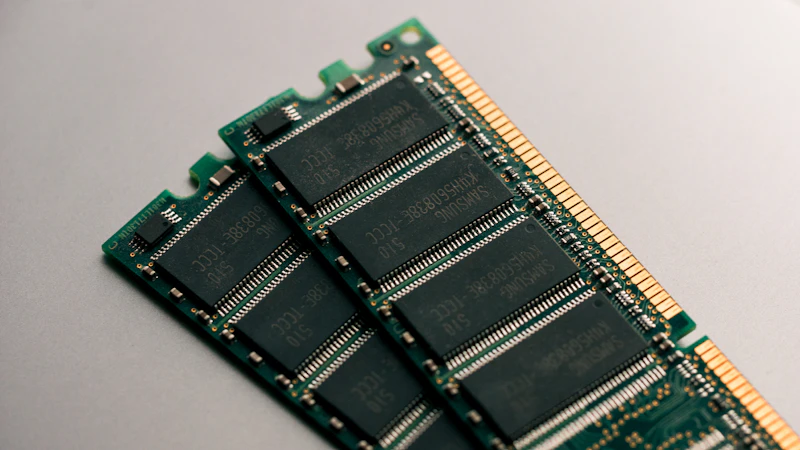
RAM Upgrade Guide: How Much You Actually Need for Gaming
By WhatToUpgrade editorial team
As an Amazon Associate we earn from qualifying purchases. Links open Amazon.com (US); check the exact variant, seller, current price and compatibility before buying.
How we make recommendations and check specificationsA RAM upgrade is one of the easiest changes you can make—but it’s also one of the easiest ways to waste money. Some builds get a huge improvement from moving off 8GB or fixing single-channel memory. Others will see almost nothing from buying more RAM.
The key is understanding what your current memory setup is actually limiting: capacity, speed, or configuration (dual-channel and XMP/EXPO).
This guide shows exactly how to decide what you need for gaming, plus the checks to run before you spend a dollar.
RAM upgrade capacity: 8GB vs 16GB vs 32GB
Capacity is the first decision because it determines whether your system can keep game data in memory or has to spill into slower storage (page file), which causes stutter.
- 8GB: not enough for modern gaming. Expect stutter, long loads, and occasional crashes in newer titles.
- 16GB: the current sweet spot for most gamers, especially if you don’t multitask heavily.
- 32GB: best for heavy multitasking (streaming + browser + background apps) and longer-term headroom.
If you’re on 8GB, upgrade. If you’re on 16GB and only game, you’re usually fine. If you stream or keep lots of apps open, 32GB is worth it.
Does RAM speed matter for gaming (and when it doesn’t)
RAM speed can matter, but the impact depends on platform and workload. In CPU-limited games, better RAM can improve average FPS and, more importantly, 1% lows (smoothness).
- DDR4 sweet spot: 3200–3600 MT/s (most value is in this range)
- DDR5 sweet spot: 5600–6000 MT/s for many modern platforms
- Diminishing returns: paying extra for very high speeds rarely changes gaming noticeably
The biggest “free” win is enabling XMP/DOCP/EXPO so your RAM runs at the rated speed instead of a safe default.
If your RAM is running at 2133–2666 MT/s and it’s rated for 3200+, enable XMP/EXPO before you buy anything.
Single-channel vs dual-channel: the hidden performance killer
Running one stick of RAM (single-channel) can reduce performance significantly—especially in CPU-limited games and on integrated graphics.
- Prefer matched pairs: 2x8GB or 2x16GB
- Use the correct motherboard slots (often slots 2 and 4—check your manual)
- Mixing kits can work but may reduce speed or stability
- Four sticks can be harder to run at high speeds on some boards
Adding a random extra stick to an existing kit can cause instability. If you can’t match your current RAM, replacing with a matched kit is often safer.
How to know you actually need more RAM
Check Task Manager while gaming. If memory usage is regularly near the limit, your system will stutter as it swaps to storage.
- Memory usage sits at ~90%+ while gaming
- Alt-tabbing feels slow and the system becomes sluggish
- Stutter gets worse the longer you play (memory creep)
- You see “out of memory” errors or crashes
- Page file activity spikes while gaming
If you’re sitting at 50–70% usage, more capacity won’t increase FPS. Look to GPU/CPU/thermals instead.
DDR4 vs DDR5: should you upgrade the platform?
DDR5 is not a drop-in upgrade from DDR4—it usually means a new motherboard and CPU. The gaming uplift can be modest, so don’t do a platform swap just for memory.
- DDR4 3600 vs DDR5 6000: often a small gaming difference, bigger in some CPU-limited titles
- DDR5 can shine in productivity tasks more than gaming
- If you’re buying a new CPU/motherboard anyway, DDR5 makes sense on modern platforms
Upgrade to DDR5 when you’re already doing a CPU/platform upgrade—not as a standalone gaming FPS upgrade.
How to upgrade RAM safely (and avoid boot loops)
RAM installs are easy, but most issues come from poor seating, wrong slots, or unstable XMP settings.
- Power off and unplug the PC
- Seat sticks firmly until both clips click
- Use the correct dual-channel slots
- Enable XMP/EXPO after first boot
- If it won’t boot, reseat RAM and try one stick at a time
- Run a memory test if you get crashes after upgrading
If XMP causes instability, step down one speed tier (e.g., from 3600 to 3200) for a stable daily setup.
Verdict
A RAM upgrade is worth it when you’re limited by capacity (8GB) or configuration (single-channel / XMP disabled). For most gamers, 16GB dual-channel with XMP/EXPO enabled is the best value. Move to 32GB if you stream, multitask heavily, or want extra headroom for the next few years. Next step: use the Analyzer to confirm whether RAM is your bottleneck or if your money would be better spent on CPU/GPU.
Frequently Asked Questions
Is 16GB enough for gaming in 2025?▸
For pure gaming, 16GB is still enough for most titles, especially if you keep background apps under control. If you multitask heavily or want more headroom, 32GB is a comfortable upgrade.
Is 32GB overkill for gaming?▸
For gaming alone, often yes. For streaming, heavy browser use, modded games, or future-proofing, 32GB is reasonable and can reduce stutter from background tasks.
Will faster RAM increase FPS?▸
Sometimes—mostly in CPU-limited games. The bigger win is enabling XMP/EXPO so your RAM runs at rated speed. Buying ultra-fast RAM often has diminishing returns.
Why is my RAM running at 2133/2400 when I bought 3200/3600?▸
You need to enable XMP/DOCP/EXPO in BIOS. RAM defaults to a safe base profile until you turn on the rated profile.
Can I mix different RAM sticks?▸
It can work, but stability and speed may drop to the slowest stick, and mismatched kits can cause boot issues. Matched kits are best.
Does dual-channel really matter?▸
Yes. Dual-channel can noticeably improve FPS and 1% lows in many games, and it’s critical for integrated graphics performance.
Do I need to reinstall Windows after upgrading RAM?▸
No. Windows will automatically detect the new memory. Just install, boot, and enable XMP/EXPO if needed.
Can bad RAM cause stutter or FPS drops?▸
Yes. Unstable RAM can cause crashes, stutter, and random errors. If issues appear after a change, run a memory test and reduce XMP speed if necessary.
Should I upgrade RAM or GPU first?▸
If you’re on 8GB or single-channel, RAM first. If you already have 16GB dual-channel and aren’t maxing memory, a GPU upgrade typically gives far bigger FPS gains.
Great-value DDR4 kit with broad compatibility for 8GB→16GB upgrades
Solid default pick
A strong choice for multitasking and many Ryzen builds that benefit from 3600 MT/s
Sweet spot for many AM4 systems
Good-value DDR5 for modern platforms where you’re already upgrading CPU/motherboard
For DDR5 platforms only
Cheap protection against static when installing RAM and other components
Optional but helpful
Related guides
See if RAM is limiting your build or if CPU/GPU is the real bottleneck
Low GPU usage can look like a RAM problem—confirm the real limiter first
Choose the upgrade that improves FPS for your resolution and game type
If you’re upgrading GPU/CPU, make sure your PSU is safe and sized correctly